How to delete your public class date
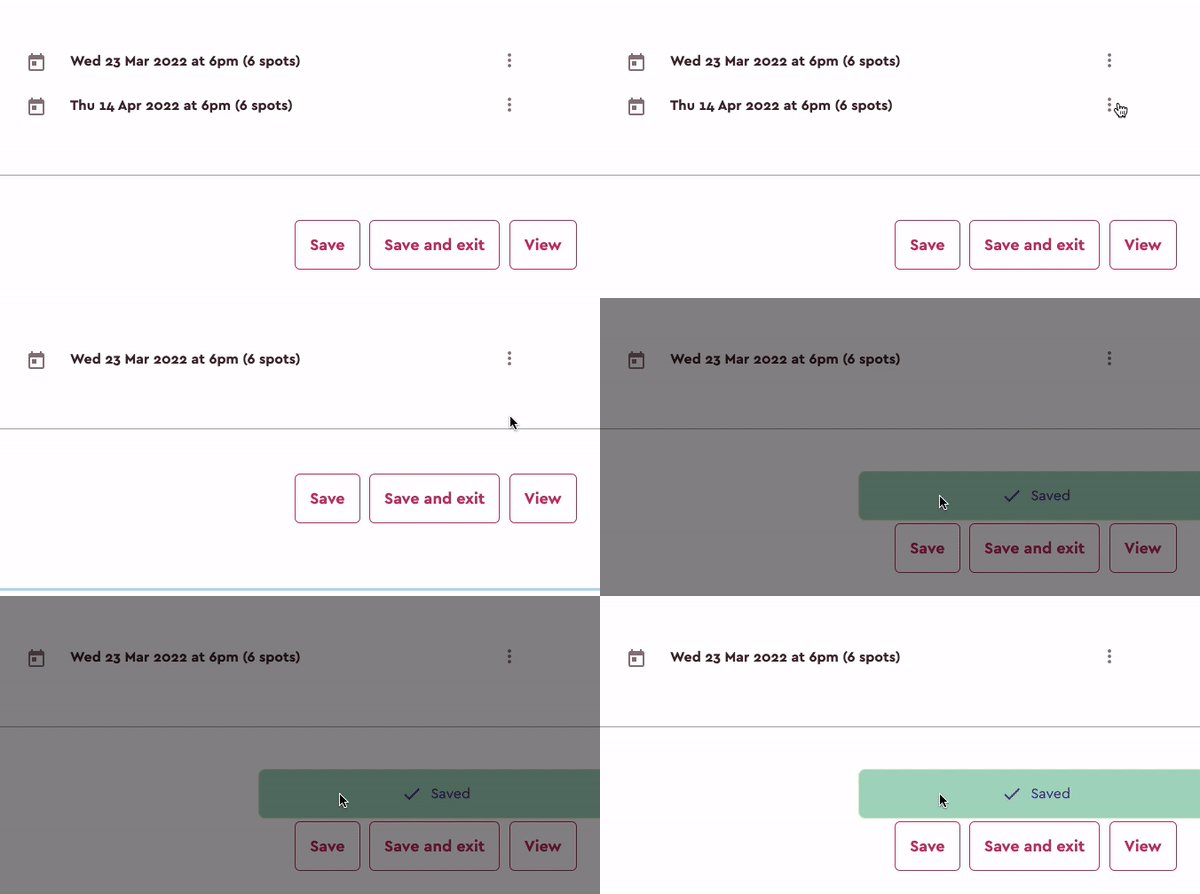
- In the “Dates” section of your listing (see the “Where can I update my class availability?” article) scroll down to where you can see the list of public class dates
- Click the three dots next to the date you’d like to edit
- Click “Delete”. If this session is not a repeated session, it will be removed straight away. See “How can you delete repeated sessions” for more info on deleting repeating sessions.
-
- If this session is not a repeated session and does not have any students booked in already, it will be removed straight away. See “How can you delete repeated sessions” for more info on deleting repeating sessions.
- If the session already has students booked in, the date will not be removed from the list of dates, however, it will be marked as “sold out” on the listing page that customers see, so that customers cannot book into that date.
-
- Make sure you click “Save” in order to save your changes.
How can you delete repeated sessions?
If you’ve set up a date to repeat, if you click the “delete” button, you’ll be shown three options.

- Only this: Delete only the session that you have chosen.

- All future repeated: Delete the chosen session and all future repeated sessions in the repeated series.
- An example of why you may use this option is if you have repeated sessions that you want to stop after a certain date. So you’ll go to that date, and use the button. This means all the sessions prior to this date in the repeated series will remain.

- All repeated: Delete all repeated sessions in the repeated series (prior and after the chosen date in the repeated series).

Comments
0 comments
Article is closed for comments.